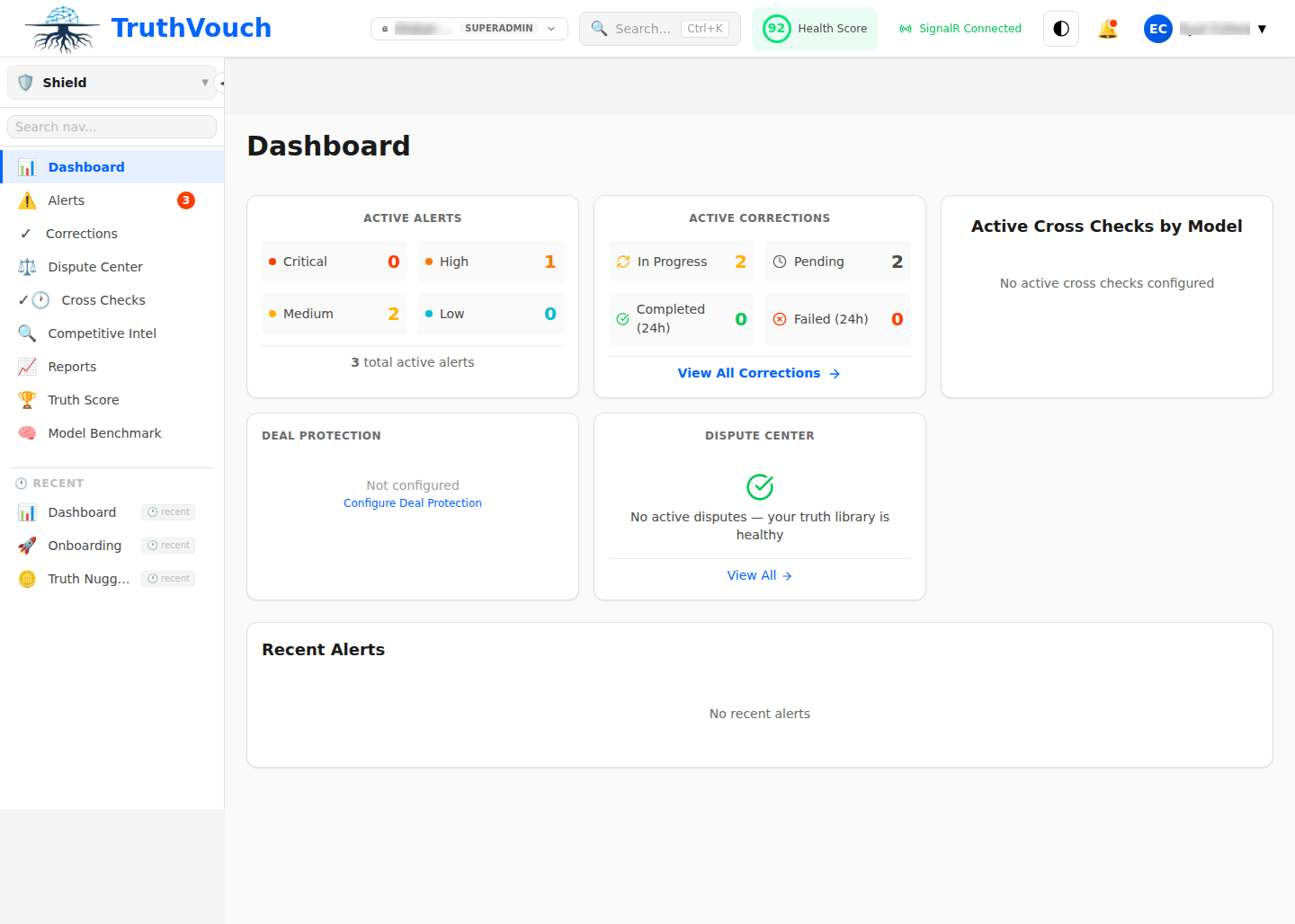
Hallucination Shield monitors every response your LLM produces and compares it against your organisation’s verified Truth Nuggets — flagging inaccuracies before they reach your users. This guide walks you through connecting your first LLM application to TruthVouch in three integration modes: the RAG Proxy (zero code-change), the Trust API (inline verification), and the Webhook pipeline (async monitoring).
API access for inline verification is included with all Hallucination Shield plans, starting from Starter ($349/mo) with 1,000 API calls/month. The RAG Proxy is available from Business ($2,499/mo). Overage beyond your plan’s included quota is billed at $0.03 per call.
Step 1: Get Your API Credentials
Before you write a single line of code, you need your TruthVouch API key.
- Log in to the TruthVouch platform at app.truthvouch.ai
- Navigate to Trust API in the left sidebar
- Click API Keys in the top navigation
- Click + New API Key, give it a descriptive name (e.g.
my-chatbot-prod), and select the scopes:hallucination:read,hallucination:write,truth-nuggets:read - Copy the key immediately — it will not be shown again
Store your key in an environment variable:
export TRUTHVOUCH_API_KEY="tvk_live_xxxxxxxxxxxxxxxxxxxxxxxx"Security note: Never commit API keys to version control. Use environment variable management tools such as AWS Secrets Manager, HashiCorp Vault, or your CI/CD platform’s secret store.
Step 2: Choose Your Integration Method
TruthVouch supports three integration patterns — choose the one that fits your architecture:
| Method | How it works | Best for |
|---|---|---|
| RAG Proxy | Drop-in proxy that sits between your app and OpenAI/Anthropic | Existing apps, zero code changes |
| Trust API (inline) | Call /verify after each LLM response before returning to user | New builds, high-trust scenarios |
| Webhook (async) | Stream responses to TruthVouch for background monitoring | High-throughput apps, non-blocking flows |
For most teams getting started, the RAG Proxy is the fastest path to value. We recommend migrating to inline verification once you understand your hallucination patterns.
Step 3: Configure the RAG Proxy
The TruthVouch RAG Proxy intercepts your OpenAI or Anthropic API calls, verifies each response against your Truth Nuggets, and either passes through clean responses or flags problematic ones — all transparently.
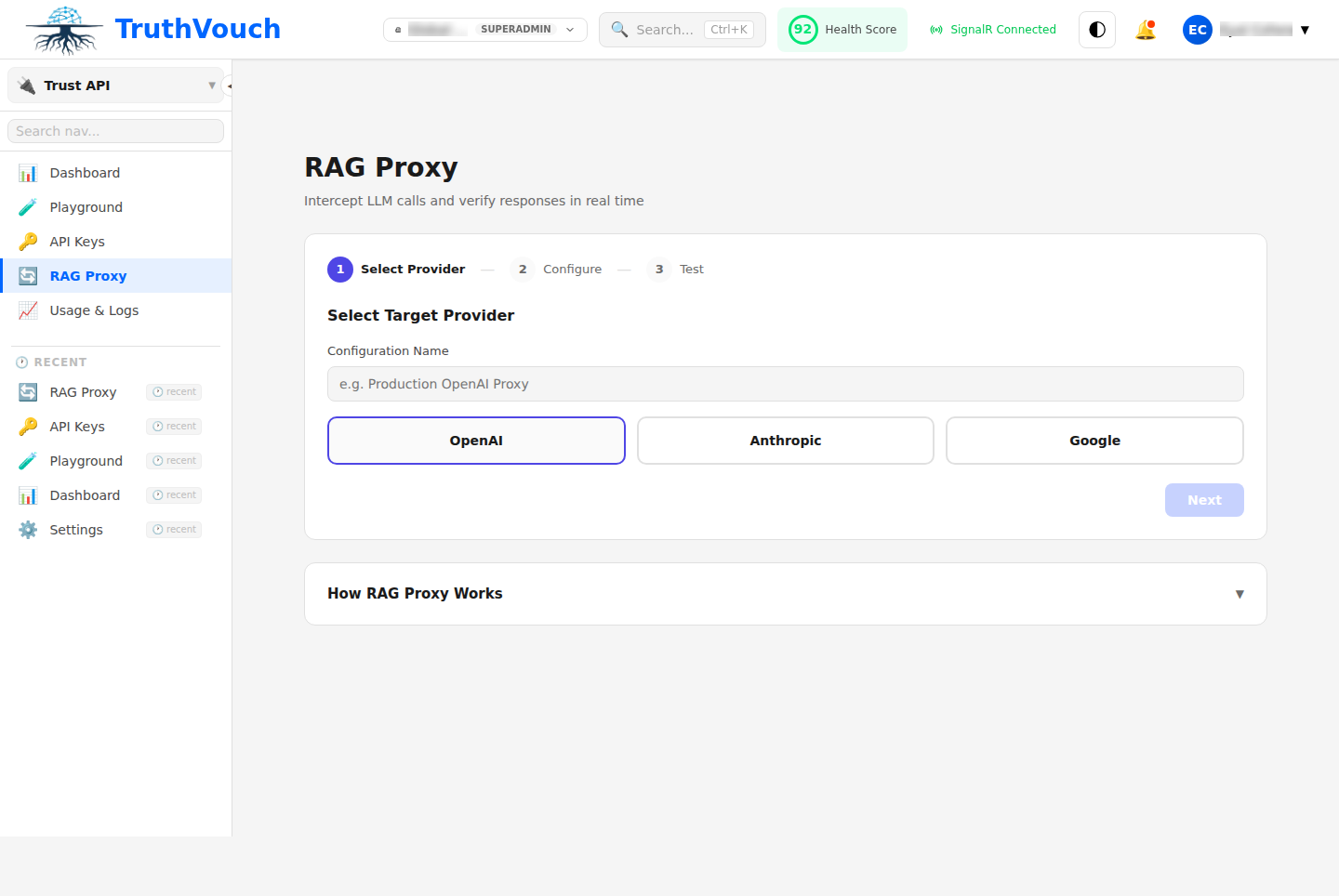
Option A: Docker (recommended for production)
# docker-compose.yml
services:
  truthvouch-proxy:
    image: truthvouch/rag-proxy:latest
    environment:
      TRUTHVOUCH_API_KEY: "${TRUTHVOUCH_API_KEY}"
      UPSTREAM_PROVIDER: "openai"          # or "anthropic"
      UPSTREAM_API_KEY: "${OPENAI_API_KEY}"
      VERIFICATION_MODE: "inline"          # inline | async | flag-only
      CONFIDENCE_THRESHOLD: "0.75"         # flag responses below this score
      PORT: "8080"
    ports:
      - "8080:8080"
Start the proxy:
docker-compose up -d truthvouch-proxyOption B: Direct install (Node.js)
npm install @truthvouch/rag-proxy// proxy.js
const { createProxy } = require('@truthvouch/rag-proxy');
const proxy = createProxy({
apiKey: process.env.TRUTHVOUCH_API_KEY,
upstream: 'openai',
upstreamApiKey: process.env.OPENAI_API_KEY,
verificationMode: 'inline',
confidenceThreshold: 0.75,
});
proxy.listen(8080, () => {
console.log('TruthVouch RAG proxy listening on port 8080');
});Point your app at the proxy
Change your OpenAI base URL from https://api.openai.com to http://localhost:8080:
# Python (openai SDK)
import openai

client = openai.OpenAI(
    api_key=os.environ["OPENAI_API_KEY"],
    base_url="http://localhost:8080/v1",  # TruthVouch proxy
)
// Node.js (openai SDK)
import OpenAI from 'openai';
const client = new OpenAI({
apiKey: process.env.OPENAI_API_KEY,
baseURL: 'http://localhost:8080/v1', // TruthVouch proxy
});That is the only change required. Your application code remains identical.
Step 4: Send Your First Request
Make a normal API call through the proxy. TruthVouch adds verification headers to the response:
import openai
import os

client = openai.OpenAI(
    api_key=os.environ["OPENAI_API_KEY"],
    base_url="http://localhost:8080/v1",
)

response = client.chat.completions.create(
    model="gpt-4o",
    messages=[
        {"role": "user", "content": "What is TruthVouch's pricing for the Starter plan?"}
    ],
)

print(response.choices[0].message.content)

# TruthVouch adds verification metadata to the response object
# response.truthvouch.trust_score        → 0.0–1.0
# response.truthvouch.flagged_claims     → list of suspect claims
# response.truthvouch.verification_id    → UUID for audit trail
// Node.js
import OpenAI from 'openai';
const client = new OpenAI({
apiKey: process.env.OPENAI_API_KEY,
baseURL: 'http://localhost:8080/v1',
});
const response = await client.chat.completions.create({
model: 'gpt-4o',
messages: [{ role: 'user', content: 'What is TruthVouch\'s pricing for the Starter plan?' }],
});
console.log(response.choices[0].message.content);
// Access verification metadata:
// response.truthvouch.trustScore
// response.truthvouch.flaggedClaimsIf your Trust Nuggets include accurate pricing information, you will see trust_score: 0.95 or above. If the LLM hallucinated a wrong price, you will see a low trust score and a flagged claim — which triggers an alert in the dashboard.
Step 5: View Your First Alert
When Hallucination Shield detects a response that contradicts your Truth Nuggets, it creates an alert in the platform. Navigate to Hallucination Shield > Alerts to see it.
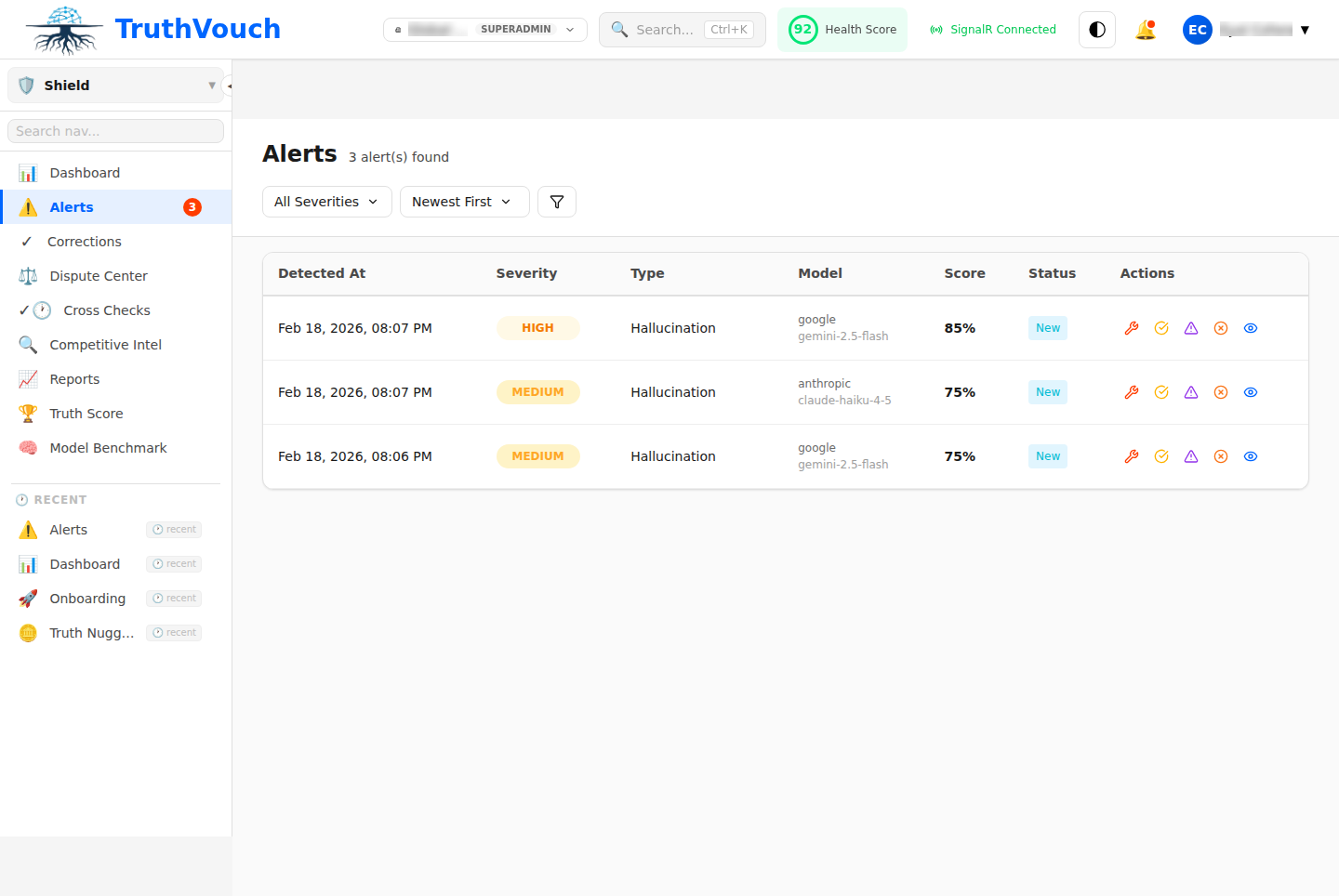
Each alert shows:
- The original question asked
- The problematic response the LLM generated
- Which Truth Nugget it contradicts
- A confidence score (how certain the detection is)
- Suggested correction text
- Which users were potentially exposed (if user tracking is enabled)
Click any alert to open the full detail view, where you can approve or dismiss the alert and trigger a correction.
Step 6: Set Up the Corrections Workflow
A detection without a correction is only half the value. The Corrections workflow lets you define how Hallucination Shield responds when it detects an inaccuracy.
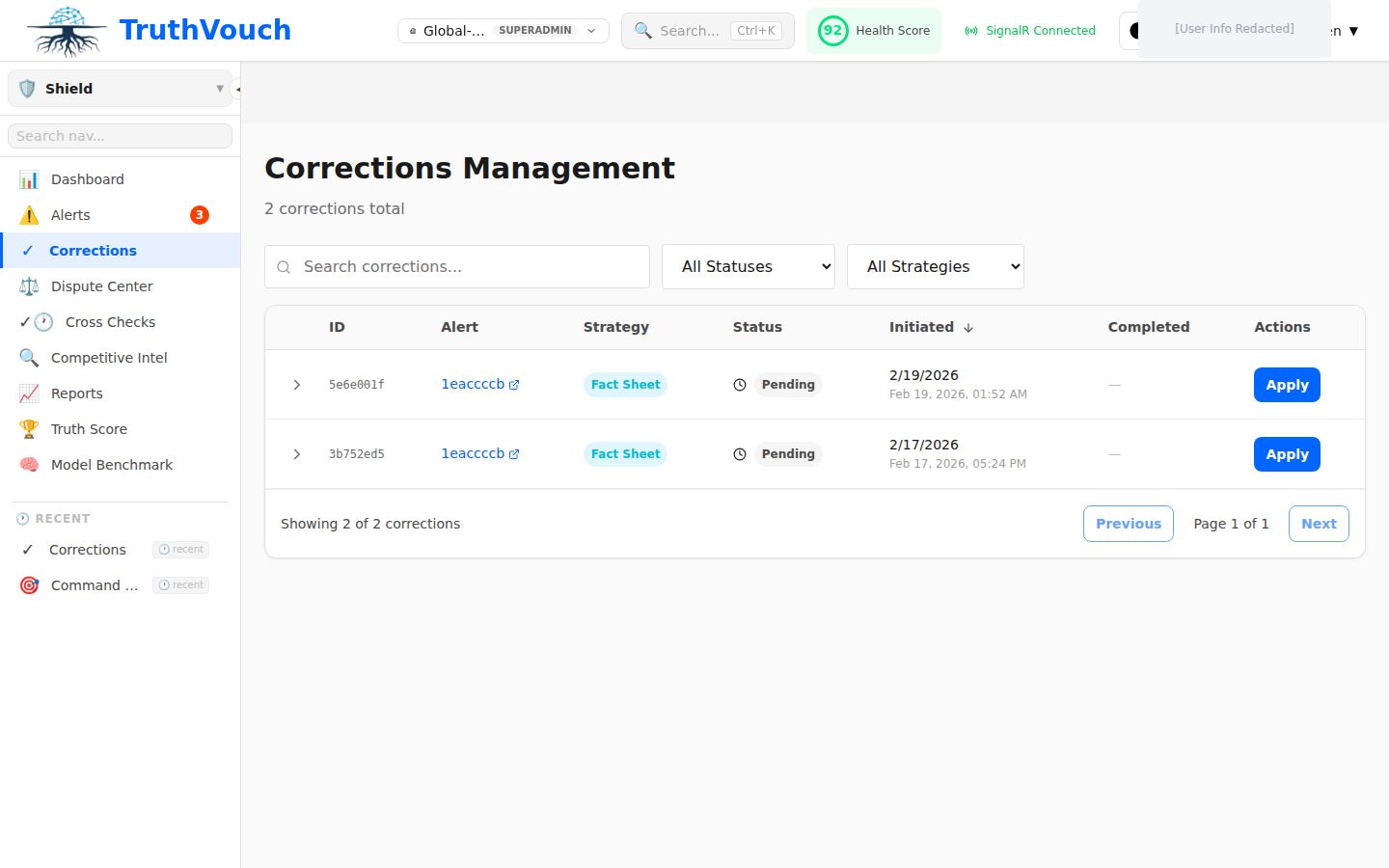
Three correction modes are available:
1. Manual review (default): Alerts appear in the queue and your team approves corrections before they go live. Best for regulated industries where you need a human in the loop.
2. Auto-correct: TruthVouch automatically appends a correction notice to flagged responses in real time. The user still sees the LLM output, but with a prominent accuracy notice at the bottom.
3. Block and replace: Flagged responses are blocked entirely and replaced with a safe fallback message. Use this for high-stakes domains (finance, healthcare, legal).
To configure corrections:
- Go to Hallucination Shield > Settings > Correction Policy
- Choose your correction mode
- Set the minimum confidence threshold for triggering corrections (recommended: 0.80)
- Configure notification recipients for the alerts queue
Next Steps
You now have real-time hallucination detection running on your LLM application. Here is what to do next:
- Set Up Your Truth Nuggets Knowledge Base — The more Truth Nuggets you have, the more accurate and specific the detection becomes. Start with your product specs, pricing, and key facts.
- Trust API Quickstart — If you want inline verification at the application layer rather than the proxy layer, the Trust API gives you full programmatic control.
- API Reference — Complete endpoint documentation, request/response schemas, SDK guides, and rate limit details.